What Screwdriver for PC Building: A Practical Guide
Discover which screwdrivers are essential for PC building, including Phillips and precision tools, anti-static safety, and how to choose a reliable set for safe, efficient assembly.


To build a PC, you’ll want a focused screwdriver setup: a standard Phillips screwdriver and a small precision screwdriver. Choose magnetic tips for easier screws in tight cases, and an anti-static wrist strap to protect components. A quality, comfortable grip reduces fatigue during assembly, while avoiding cordless impact drivers or power tools helps prevent slips and damage.
Why the right screwdriver matters
Building a PC is a precision task. The right screwdriver minimizes damage from slips, reduces thread wear, and helps you tighten fasteners evenly. The Screwdriver FAQ team emphasizes tool quality and ergonomics as part of a safe, efficient build. According to Screwdriver FAQ, investing in a dedicated PC-building screwdriver set is worth the small upfront cost for long-term reliability. Emphasizing safety with anti-static practices and careful torque control protects CPUs, memory, and delicate connectors. When your toolkit is purpose-built for electronics assembly, you reduce the risk of damage caused by misfits, over-tightening, or dropped screws. A simple, organized approach—magnetic tips, a comfortable handle, and the right balance of precision and power—keeps the build moving smoothly.
This guidance aligns with a broader best-practice mindset in DIY electronics where reliability and repeatable results matter more than haste. By prioritizing ergonomics and purpose-built tools, you’ll notice fewer dropped screws and less scrambling for the correct bit in the heat of assembly. DIY enthusiasts often underestimate the value of a focused toolkit, but the payoff shows up as fewer retries and a lower risk of costly mistakes.
Key takeaway: start with a compact, high-quality screwdriver set and a plan for using it in small, measured steps.
Essential screwdriver types for PC building
For most PC builds, you’ll rely on a few core tools. A standard Phillips screwdriver handles the majority of case panels, motherboard standoffs, and bracket screws. A small precision screwdriver is indispensable for tight spaces—M.2 screws, fan screws, and other tiny fasteners require careful handling. Some cases or coolers may use Torx or other head types; if you encounter them, a compact bit set with multiple head shapes will cover you. Magnetic tips save time by holding screws on the bit as you position them, but keep magnets away from sensitive components when you’re near SSDs and memory. Finally, an anti-static, non-marring handle helps prevent slipping while protecting sensitive electronics.
When selecting your toolset, consider whether you’ll encounter unusual fasteners on a case or cooler; having a small Torx or specialty bit can prevent last-minute scrambles. In most builds, you’ll survive with a Phillips driver and a precision set, but extras are helpful for future upgrades or repairs. A magnetic tip can dramatically reduce frustration in hard-to-reach spots, while an immovable grip prevents fatigue during longer assembly sessions.
Choosing a screwdriver set for your PC build
When selecting a set, prioritize three things: compatibility, ergonomics, and safety. Look for a screwdriver with a comfortable, non-slip grip and a securely locking bit. A magnetic tip is convenient for recessed screws, while a precision subset should be included for small fasteners. A portable, organized case or rack keeps bits sorted and easy to grab. Anti-static features or a dedicated anti-static wrist strap are worth the investment, especially if you’ll assemble multiple systems. For longevity, choose a set with replaceable bits and a mechanism to keep them from wandering in your tool box. A well-chosen set reduces time spent hunting for the right bit and minimizes the risk of cross-threading when you drive screws at awkward angles.
A good PC-building toolkit doesn’t need to be expensive to be effective. Prioritize basic reliability and a few specialty bits rather than buying every imaginable driver. This keeps your workspace uncluttered and simplifies your workflow while still giving you everything you need for routine builds.
Practical PC build scenarios
Scenario A: Mounting a motherboard. Align the I/O Shield, place the motherboard gently into the case, and insert the standoffs in their correct locations. Use a standard Phillips screwdriver to secure the board, tightening screws in a diagonal pattern to prevent warping. Check that the board is level and that no cables will be pinched during later assembly.
Scenario B: Installing storage drives. For 2.5" and 3.5" drives, attach screws through drive trays or mounting points using the precision screwdriver. For NVMe drives, the screws are small and the precision driver is typically enough; keep screws in a labeled tray so you don’t lose them in the case.
Scenario C: Securing GPU and power components. Install the GPU in the PCIe slot and fasten the back bracket with the appropriate screw. If your case uses a dedicated PSU bracket or cover, secure it with the same driver set. Maintain even pressure and verify clearances before powering on. An anti-static approach remains essential throughout.
In all cases, use the magnetic tip to hold screws until they are threaded, then back off slightly to avoid cross-threading. This approach reduces dropped fasteners and damaged threads while keeping you moving efficiently through the build.
Care and maintenance
Keep your screwdriver clean and dry; wipe blades after use and store them in a dry, organized case. Inspect bits for wear, replace dull blades, and avoid using damaged drivers on critical components. Regularly check the grip and ensure the handle isn’t cracked. Store in a dry place away from moisture that could cause rust. Periodically test your magnetic tips to ensure they retain enough attraction for screws without pulling small components off the board. A small brush can help remove dust from the bits, extending their life and improving performance.
Authoritative sources
- OSHA: https://www.osha.gov
- NIST: https://www.nist.gov
- FTC: https://www.consumer.ftc.gov/
Common mistakes to avoid during PC assembly
Common mistakes include using the wrong head type, over-tightening, skipping anti-static precautions, and using a power screwdriver. Also, not verifying screw length and thread type can cause damage. Keep screws organized, double-check before tightening, and respect the torque limits of your materials. If a fastener resist bites, back out and realign rather than forcing it. Safety gear and proper handling reduce risk to both you and your components.
The Screwdriver FAQ’s verdict
According to Screwdriver FAQ, a focused, quality screwdriver set tailored for PC building is worth the investment for DIY enthusiasts and homeowners. The team recommends a simple toolkit with essential drivers and safety gear, emphasizing ergonomics, reliability, and anti-static practices. A compact, correct toolkit supports faster builds and fewer mistakes, reinforcing the idea that good tools are a foundational part of successful DIY computer projects.
Tools & Materials
- Standard Phillips screwdriver(Medium-size Phillips head; fits most case panels and motherboard screws)
- Precision screwdriver set(Small bits for tight spaces (M.2 screws, CPU cooler mounting, fan screws))
- Magnetic-tip screwdriver or magnetic bit holder(Keeps screws on the bit as you position them; use near sensitive components with caution)
- Anti-static wrist strap(Ground yourself before handling components to prevent static damage)
- Anti-static mat(Optional but helpful for larger builds and sustained work)
- Screw organizer or small containers(Helps keep screws sorted by size and function)
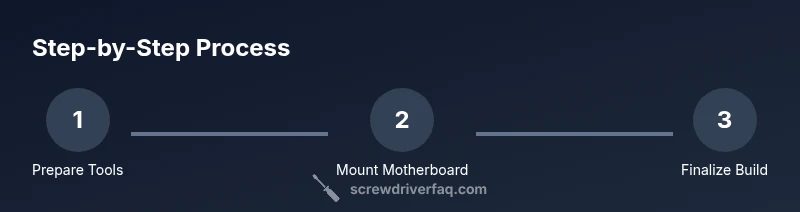
Steps
Estimated time: 30-45 minutes
- 1
Prepare your workspace and tools
Set out a clean, static-free surface. Gather your screwdriver(s), magnet, and a labeled tray for screws. Inspect each component for damage and ensure power is off before handling any parts.
Tip: Lay out screws in labeled jars to avoid mixing sizes. - 2
Mount motherboard standoffs and secure the board
Install the case standoffs in the correct pattern for your motherboard, then place the motherboard gently and align screw holes. Use the standard Phillips screwdriver to secure a few screws, tightening evenly to avoid bending the motherboard.
Tip: Do not overtighten; snug is enough to prevent movement. - 3
Install drives and expansion cards
Mount SSD/HDD in their trays, NVMe drives in their slots, and insert PCIe cards. Use the precision screwdriver for small screws in tight spaces and the magnetic bit holder to keep screws accessible during installation.
Tip: Keep track of drive screws in a labeled container. - 4
Secure the GPU and power components
Attach PCIe cards with their bracket screws and secure power supply from the case with the appropriate screws. Avoid applying excess force; check alignment before final tightening.
Tip: Use steady, controlled pressure and verify clearances before powering on. - 5
Final checks and cable management
Tighten any remaining screws lightly and route cables for airflow. Remove the anti-static strap only after confirming all connections are correct and the panel is closed.
Tip: Double-check screws on all components and keep cables tidy for cooling.
Quick Answers
Do I really need a precision screwdriver for PC building?
Yes. A precision screwdriver helps with tight spaces such as M.2 screws, motherboard standoffs, and other small fasteners.
Yes. A precision screwdriver is essential for tight spaces like M.2 screws and motherboard standoffs.
Can I use a power screwdriver for PC assembly?
Power screwdrivers can slip and damage delicate components; stick to manual screwdrivers for critical assembly.
Power screwdrivers can slip and damage delicate parts; use manual screwdrivers.
Should I magnetize or demagnetize my screwdrivers?
Magnetic tips are convenient, but avoid near sensitive components. You can magnetize temporarily if needed and demagnetize afterward.
Magnetic bits are handy, but avoid near sensitive parts; magnetize only if necessary.
What if I don’t have an anti-static wrist strap?
Work on a grounded, non-static surface and avoid touching connectors that may hold static. An anti-static mat helps, but it's not mandatory.
If you don’t have a strap, use a grounded surface and touch a metal object to discharge static.
Are Torx screws common in PC builds?
Most PC builds rely on Phillips or precision screws; Torx may appear in some components, so check hardware docs.
Most PC builds use Phillips, but some parts may use Torx; check the docs.
What should I look for in a screwdriver brand?
Look for quality materials, comfortable grip, magnetic tips, and anti-static features. A reliable brand saves time and reduces risk of damage.
Choose a screwdriver with quality build, comfy grip, and anti-static features.
Watch Video
The Essentials
- Use a focused screwdriver setup for PC builds.
- Always ground yourself before handling components.
- Keep screws organized to avoid losing fasteners.
- Choose ergonomic tools with secure grips and magnetic tips.